
PID implementation: Interactive control
Now you are at the stage where you have characterized your process and you have a *.pid file with the PID control setting that will (hopefully!) work with your process. Time to move on to The Real Thing!
Fear not, there are still a few tricks left in PIDassist to help you on your way.
In the folder /SPLat Programs under PIDassist you will find a SPLat program called Interact.spt. Make yourself a copy of that program and load it into SPLat/PC. I will assume that by now you have mastered how to switch access to the SPLat board between PIDassist and SPLat/PC by suitably connecting, disconnecting and isolating the COM port. I will also assume that you have got the SPLat interfaced to your process.
Now would be a good time to review your scaling and inversion. If you get the inverting/non-inverting setting wrong, you could wind up with a mess. Most likely the closed loop system will latch up at zero output or full output. If you fluke a very low initial error it could also just sit there doing nothing, so don't take the absence of latchup as a sure sign you have it right. The other gotcha to watch out for is a process that can suddenly "change sign". This can happen sometimes if an input gets over-driven. For example, some FET operational amplifier chips will change sign if over-driven.
You must have a very thorough understanding of the process you are controlling, including its behaviour under extreme conditions of loading, temperature, over-drive, mains voltage fluctuations, poor feed stock etc. etc.
Interact.spt is a complete PID control program designed to interact with PIDassist. It will control your process from the SPLat, but let you change all the control parameters from PIDassist. It will also let you display and log results to disk. Take a close look at the program now. There are a number of sections of code that you may need to tailor to interface it to your process. My code includes some fancy stuff for monitoring what's going on with MMi200 front panel LEDs and LCD. It's up to you if you do something similar or apply KISS. I find it invaluable to have close monitoring of as much stuff as possible. When modifying the program, make very sure you don't interfere with any of the RAM addresses I have flagged as supplied by the PC or read out by the PC.
When you are modifying my program, consider adding a push button the will force the integral value and the output to a level that is safe for the process. You could even have a button to pause/unpause the PID calculations. PauseFlag, by the way, is set to the state of the PIDassist Pause button (True = paused), but I haven't put any code for it in Interact.spt.
You need to select the "All in SPLat" mode of PIDassist.
The parameters from the Controller pane of PIDassist are automatically transferred to the SPLat at the appropriate times. This generally means when you "un-press" the Pause button after editing some values, or immediately for those parameters that don't Pause the program when changed. Undo also updates the SPLat.
Changing parameters during a run can produce "bumps" in the output. Do not do it if there is any danger of damage or injury if your process gets out of control. In general, you must take every precaution during this whole procedure to prevent any dangers arising from your process getting out of control. You must have safety devices in place that will independently shut down the process before anything bad happens. This is not the time to bypass pressure relief valves, thermal overloads or emergency stop switches.
Once you have all your safety precautions in place, start the SPLat program running and click the Pause button 2-3 times to make sure the parameters are sent to the SPLat. Then apply power to your process, i.e. do whatever it is you do to enable it. If you wish, turn on logging as well.
The SPLat should now be controlling your process. If it's a slow process, you will have to be patient to see the results develop. Change the setpoint to see how well it handles the change. You can use the SetPoint Cycle function if you want.
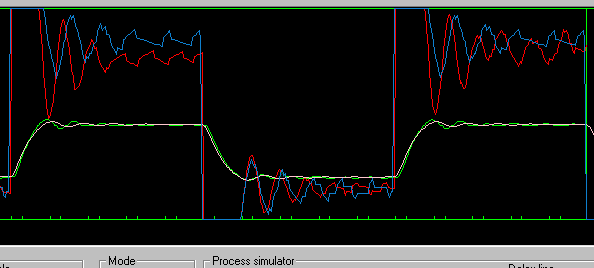
The graphs show my results with the heating contraption, comparing the simulation (blue and yellow) versus The Real Thing (red and green). I did a bit of screen capturing and superimposing in an image editor to create the composite curve. For this run I used PID settings that deliberately produced slight ringing, just to make it more interesting. You can see my process gain and offset are a bit off, but overall the two are in good agreement.
If necessary you can now fine-tune your PID control parameters. Certainly be prepared for some difference between the simulation and the real thing. There are a host of subtle real world factors that can cause this to occur. If you're lucky it will be just a matter of a minor tweak in Ap, maybe not even that. At the other extreme, you could find that a complete retuning with the live system is required. If this happens you should look for things that might have caused the difference. I suggest you get lots of practice in pure simulation mode, so you can get a bit of a feel for what effect the various parameters have. They do interact a lot, so it can be a challenge!
This is also the time where you should thoroughly go through the full range of operational conditions that your device will encounter. Try doing nasty things to the process. Change the supply voltage, make sudden changes in the loading (how much heat, energy or floobies are taken out), change the ambient temperature. In short, do all the things it will experience once it is put into operation. Then do some things beyond what you expect it to normally encounter (if you don't your customers probably will!). It may be a lot cheaper to fix a problem now than later.
Save your settings in a .pid file, and you are ready to generate your final (production) SPLat code!