There are 3 key methods to positioning items in SimpleHMI:
All of these methods may be combined with positioning relative to:
Any combination of these may be used in every instruction that takes positioning. These concepts are succinctly explained by example.
   #HMI SetCursor( x:10, y:-2 )     ;10 chars from the left, 2 lines from the bottom

   #HMI SetCursor( x:c-2, x:c+30px );2 chars from the left of centre, 30 pixels down from centre

   #HMI SetCursor( x:-45px, y:25% ) ;45 pixels from the right, 1/4 from the top
Images and buttons are positioned relative to the whole screen. Text is drawn relative to the current bounding box which is set and cleared by the #HMI SetBounds() instruction. The default bounding box is the whole screen.
Therefore:
Character positioning uses the dimensions of the current font. Character positioning is performed when a position is just a number with no suffix (eg: "px" or "%").
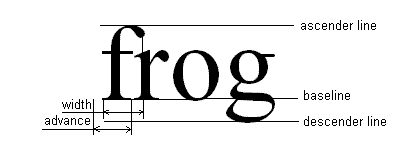
If the font is proportional things get more complicated because characters have a varying width, so the HMI controller uses the advance of a '0' (zero) to determine the offset. If positioning is from the right edge, it performs an initial offset of the width of the widest character. When positioning the row, the baseline of the current font is used.
In other words, character positioning works well with non-proportional fonts such as the default system font, but works less reliably with proportional fonts.
Using the baseline means the font size can be changed and characters printed on the same line will all line up.
Print from the top left corner using a mix of font sizes.
   #HMI SetFont( "large.fon" )
   #HMI SetCursor( x:0, y:0 )    ;position using the large font to ensure there's space for it
   #HMI SetFont()                ;default font
   #HMI Print( "Normal Text " )
   #HMI SetFont( "large.fon" )
   #HMI Print( "Large Text" )
   #HMI SetFont( "small.fon" )
   #HMI Print( " and Small Text" )
Pixel positioning uses only whole numbers and has a "px" suffix. Some examples:
#HMI SetCursor( x:10px, y:50px )
position the cursor 10 pixels from the left, 50 pixels from the top of the current bounds.
#HMI SetCursor( x:-50px, y:( f(=w,3,0), "px" ) )
position the cursor 50 pixels from the right and the value in W as pixels from the top of the current bounds.
Fraction positioning uess a "%" suffix and is based on the current bounds. Some examples:
#HMI SetCursor( x:10%, y:-45.5% )
position the cursor 10% from the left, 45.5% from the bottom of the current bounds.
A positive position number means positioning will be performed from the left or top edge.
A horizontal or vertical position the starts with "C" means relative to the centre of the current box.
Examples
#HMI SetCursor( x:C-2.5, y:C+10px )
position the cursor left 2.5 characters from the centre, 10 pixel down from the centre of the current bounds.
#HMI DrawImage( x:C+15px, y:( "C+", f(=q,3,0), "px" ), i:"orange.png" )
draw the image 15 pixels right of centre, the value of Q down from the centre of the current bounds.
A negative position number means positioning will be performed from the right or bottom edge.